Book accommodation
Last updated 23 September 2026
You don't need an account to book — you just need the dates and your contact details.
Step 1 — Open the booking page
Click Book Accommodation on the club's home page, or go straight to /accommodation/book on the club's site.
Step 2 — Enter your dates
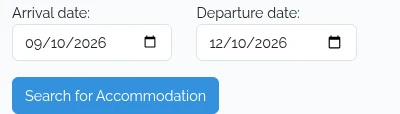
Fill in your Arrival date and Departure date and click Search for Accommodation. You can't book dates in the past, and your departure has to be after your arrival — the form doesn't reliably stop you entering a stay of no nights, and searching for one comes back silently, with no rooms and no message. If that's what you get, check your dates first.
Step 3 — Pick your rooms
What comes back is only what's free for the whole of your stay. Tick as many as you need. If your group is booking out the bunkhouse, use Select all accommodation — that button only appears while nothing is ticked, so reach for it first.
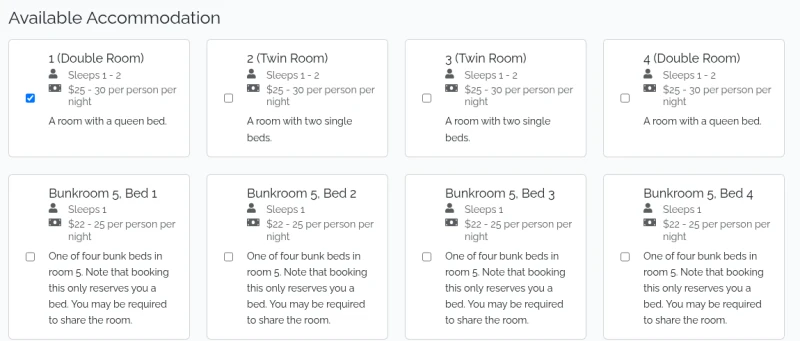
Each card shows how many the room sleeps and the nightly price range. To change your dates, search again — the arrival and departure fields further down the form are read-only.
Step 4 — Enter your details
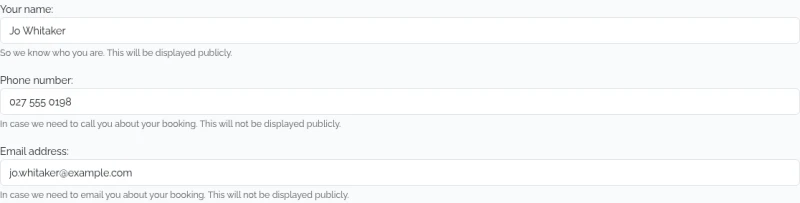
Your name is shown publicly on the club's bookings list, so people can see who's around. Phone number and email address are only visible to the club's administrators.
Step 5 — Book
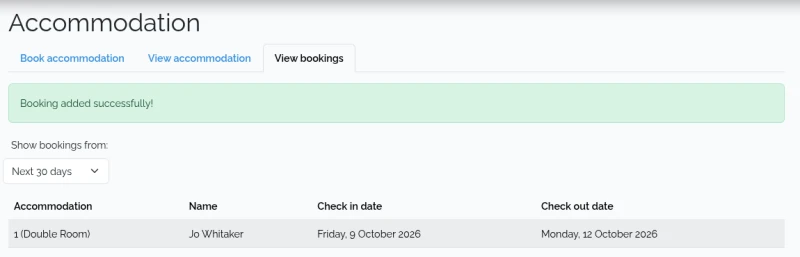
Click the Book button — it names what you're booking, so it's worth a glance before you click. You land on the bookings list with a "Booking added successfully!" banner, and a confirmation email arrives with your rooms, your dates, and whatever note your club adds to the bottom of theirs.
That list starts on Next 30 days, so if you booked further ahead your row isn't under the banner — widen Show bookings from to find it.
If nothing is available
You'll get a message saying so, with a link to the existing bookings — worth a look if the club's rooms sleep more than one and you're happy to share.
If someone beats you to it
Rooms are held at the moment you click Book, not when you search. If someone books one of your rooms while you're filling in the form, the booking is refused and the search runs again so you can see what's left.
Need to change a booking you've already made? See change a booking.